
When buying and selling property here in the West Kootenay area, I am often asked four specific questions:
- Where are the property boundaries?
- How do we determine the zoning?
- What is the slope of the property?
- What are the specific property dimensions?
While I am always here to help you navigate these details, there is a fantastic free tool you can use right now to find this information yourself: the RDCK (Regional District of Central Kootenay) Map.
In the video above, I walk you through exactly how to use this tool. Below is a quick step-by-step guide to accompany the video.
Step 1: Accessing the Map
First, head to Google and search for "RDCK Map." Click the link for the Regional District of Central Kootenay Web Map.
1. How to Determine Property Boundaries
Once you have the map open, the standard view might be a bit abstract.
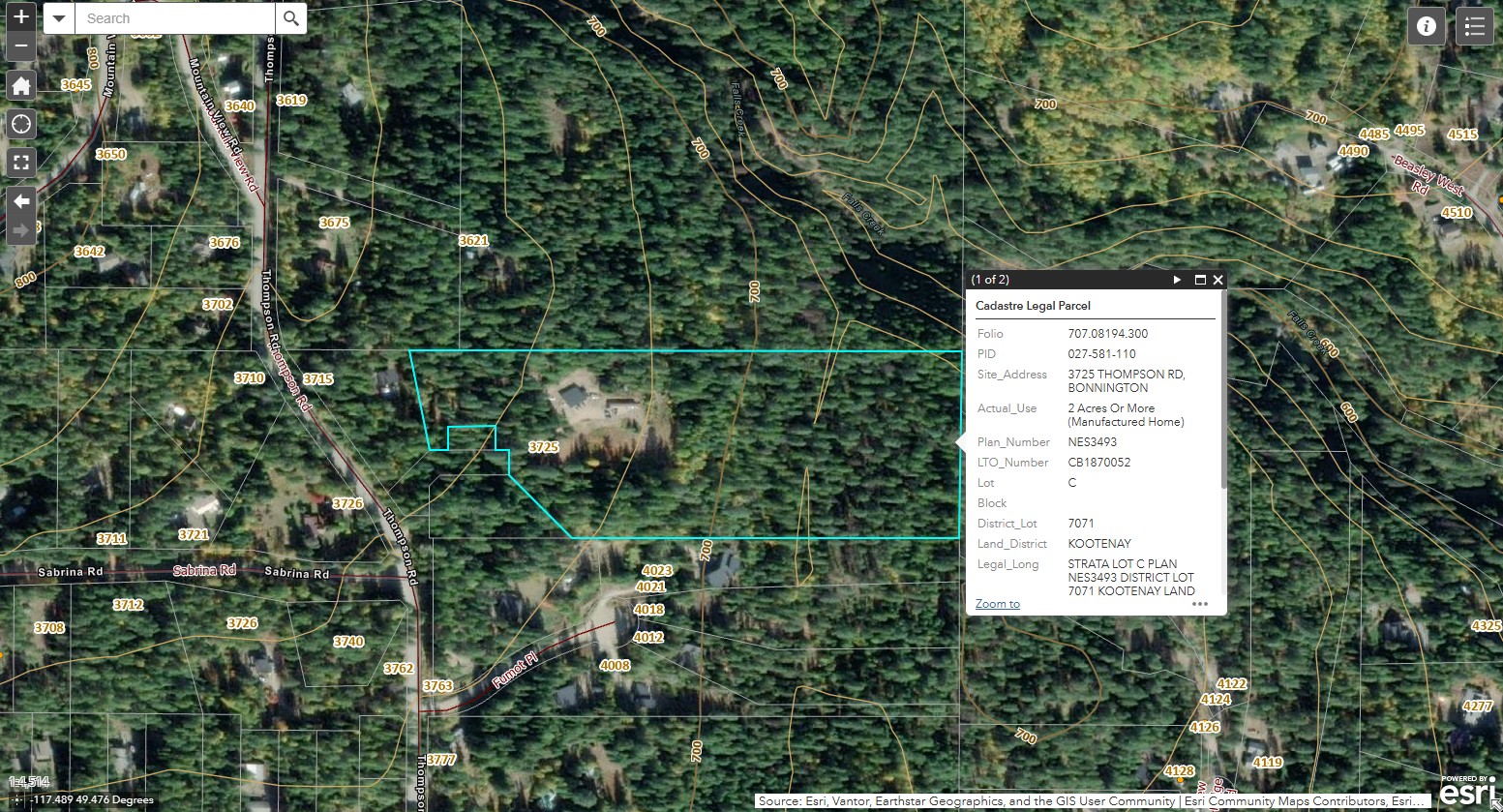
- Turn on "Image Hybrid": Go to your map layers and select "Image Hybrid." This overlays satellite imagery, giving you much greater clarity on the terrain.
- Zoom In: Navigate to your subject property (in the video, I use a south-facing property in Bonnington as an example).
- View Boundaries: The map will clearly outline the property lines so you can see exactly where the lot begins and ends relative to the landscape.
2. How to Determine Zoning
Knowing what you can build or do on a property is crucial.
- Find the PID: Click on the property to find the Parcel ID (PID). This is a 9-digit number (formatted as 000-000-000). Copy this number.
- Generate Report: Click the "Hamburger" menu (the three lines at the top left of the screen) and select Property Information Report.
- Search: Select "PID" as your search criteria, paste the number, and hit "Report."
- View Zoning: The report will populate with details. Look for the "Zoning" section (e.g., "Country Residential"). There is usually a document link right there that you can click to read the specific restrictions and bylaws for that zone.
3. How to Determine Slope
Just because a property is 10 acres doesn't mean all 10 acres are flat and usable.
- Turn on Contours: Go back to the Map Layers button and select Contours.
- Read the Lines: You will see orange lines appear on the map. These delineate 20-meter elevation differences.
- Calculate: By counting the lines between the low and high sides of the property, you can estimate the elevation gain. For example, if you see 4 lines, that is approximately 80 meters of elevation change.
4. How to Determine Property Dimensions
If you need to know the length of a specific fence line or driveway:
- Open Measurement Tool: Click the "Hamburger" menu again and select the Measurement Tool (look for the ruler icon).
- Select Units: Choose your preferred unit (e.g., Feet).
- Measure: Click on one corner of the property (e.g., the Southeast corner) and then click the next corner (e.g., Northeast). The tool will display the length specifically for that segment (e.g., 491 feet).
I hope this helps you feel more confident when researching listings! Whether you are looking at boundaries, slopes, or zoning, these tools are invaluable for doing your due diligence.
If you have further questions or need help interpreting what you find on the map, feel free to reach out.